
Why Prometheus and Grafana?
- Prometheus is an open-source monitoring system with a time-series database, a powerful query language (PromQL), and built-in alerting. It's designed to handle dynamic cloud environments like Kubernetes.
- Grafana is a popular open-source visualization tool that integrates seamlessly with Prometheus. It helps visualize metrics and build insightful dashboards.
Prerequisites
Before we begin, ensure you have the following:
- EKS Cluster: A running Amazon EKS cluster.
- kubectl: Installed and configured to interact with your EKS cluster.
- Helm: A package manager for Kubernetes to simplify the installation process.
- IAM Permissions: Adequate permissions to manage your EKS cluster, including installing Helm charts.
Step-by-Step Guide
Step 1: Install the Prometheus and Grafana Helm Chart
The easiest way to deploy Prometheus and Grafana in your Kubernetes cluster is via Helm. We will use the stable Helm charts.
First, add the Helm repository for Prometheus and Grafana:
Now, install the Prometheus Helm chart into your EKS cluster. You can specify a namespace for Prometheus (e.g., monitoring).
The Kube-Prometheus stack will install both Grafana, Prometheus and AlertManager, as well as the node-exporter and kube-state-metrics components for gathering Kubernetes metrics.
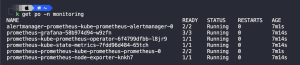
You can verify all pods in the stack are running through the following command:
Step 2: Accessing Prometheus and Grafana
By default, Prometheus and Grafana services are not exposed to the public internet. You can expose them through an AWS Application Load Balancer (ALB). To access Prometheus and Grafana externally, you can patch the corresponding services to use an ALB.
At this point, you can get the public DNS of the load balancer from the AWS console. Be sure to associate a security group to your load balancer to limit access to your monitoring solution. Once the load balancer is up and running, you can access Grafana using the DNS name of the load balancer.
Alternatively, if you are experimenting with Minikube, you can expose your services via port-forwarding using the following commands:
kubectl port-forward -n monitoring svc/prometheus-kube-prometheus-prometheus 9090:9090
kubectl port-forward -n monitoring svc/prometheus-grafana 3000:80
You can now access Prometheus at http://localhost:9090 and Grafana at http://localhost:3000.

The default credentials are:
- Username:
admin - Password:
prom-operator
Be sure to change your password after your first login.
Step 3: Setting up Grafana Dashboards
Grafana comes with pre-configured dashboards for Kubernetes monitoring. Once you're logged into Grafana, follow these steps to set them up:
- Prometheus Data Source: If you setup Prometheus and Grafana using the Kube-Prometheus stack, this data source will already be configured. If you have installed Prometheus and Grafana separately, you will need to setup Prometheus as a data source.
- Navigate to
Connections->Data Sources. - Add a new data source and choose "Prometheus."
- Enter the Prometheus service URL:
http://prometheus-kube-prometheus-prometheus.monitoring.svc:9090. - Click "Save & Test" to ensure Grafana can connect to Prometheus.
- Navigate to
- Import Pre-Built Dashboards: Grafana allows you to import community-built dashboards specifically designed for Kubernetes monitoring.
- Go to
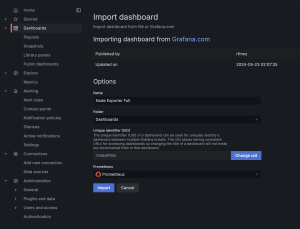
Dashboards->New->Import. - Use dashboard IDs from Grafana's official dashboard page (https://grafana.com/grafana/dashboards).
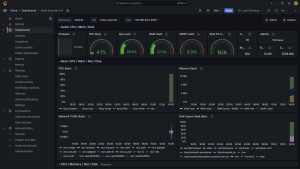
- Copy the ID for any popular dashboard you want to use. For this post, we will use the "Node Exporter Full" dashboard.
- The dashboard you get from this looks like the following:
- Go to
Step 4: Configuring Alerts
Prometheus comes with a powerful alerting system. Alerts are defined in Alertmanager, which you can configure in the values.yaml file before installing the Helm chart or modify later. To set up a simple alert, follow these steps:
kubectl edit configmap -n monitoring prometheus-kube-prometheus-alertmanagerAdd your alert rules under the alertmanager.yaml section. For example, to set up a basic alert for high CPU usage:
yaml
   alert: HighCPUUsage
   expr: sum(rate(container_cpu_usage_seconds_total[5m])) by (instance) > 0.85
   for: 2m
   labels:
     severity: critical
   annotations:
     summary: "Instance  CPU usage is over 85%"
     description: "CPU usage is above 85% for the past 2 minutes."
Once you've configured alerts, Prometheus will automatically reload the configuration. You can verify the alerts by visiting the Alertmanager web UI (accessible through port-forwarding or Load Balancer).
Step 5: Persisting Data
By default, Prometheus and Grafana store data in their respective pods, which means the data will be lost if the pod restarts. To persist data, you need to configure persistent volume claims (PVCs). Modify the Helm values to enable persistence:
prometheus:
  prometheusSpec:
    storageSpec:
      volumeClaimTemplate:
        spec:
          accessModes: ["ReadWriteOnce"]
          resources:
            requests:
              storage: 20Gi

grafana:
  persistence:
    enabled: true
    size: 10Gi
After updating the values, you'll need to redeploy the Helm chart with:
helm upgrade prometheus prometheus-community/kube-prometheus-stack --namespace monitoringThis ensures your data remains even after pod restarts.
Conclusion
With Prometheus and Grafana installed on your EKS cluster, you now have a powerful monitoring stack capable of tracking the health and performance of your Kubernetes environment. This setup provides detailed metrics, insightful visualizations, and flexible alerting capabilities, making it easier to ensure your applications and infrastructure are running smoothly. Monitoring with Prometheus and Grafana can be further extended by integrating with additional data sources, enabling long-term storage, or customizing alerts based on your system's needs. Happy monitoring!
Learn more about Amazon EKS here: https://aws.amazon.com/eks/
Learn more about Prometheus here: https://prometheus.io/docs/visualization/grafana/
Learn more about Grafana here: https://grafana.com/
And don't forget to check out more great Mantalus Blogs and Case Studies
Recent blogs